 Free express delivery by DPD on all PCs
- ClearpayPay in 4 interest-free payments
- 5 Year warranty! Trusted reviews
 Free express delivery
  Clearpay
 5 Year warranty! Trusted reviews
Category: News
What PC Components Should You Upgrade First?
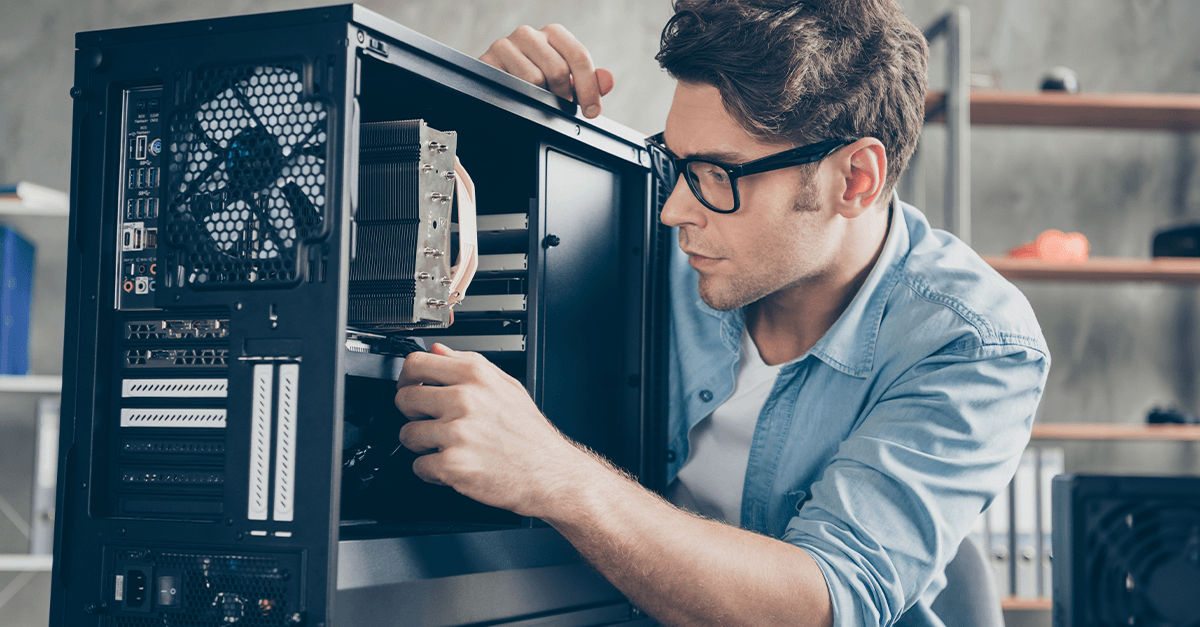
When it comes to upgrading your PC, the components you should prioritize depend heavily on your intended use. Whether you’re building a high-performance gaming PC, enhancing an office PC for productivity, or upgrading for content creation, knowing what to upgrade first can significantly improve your computer’s performance and efficiency.
Upgrading a Gaming PC
For gamers, performance is key. Here are the most impactful upgrades:
1. Graphics Card (GPU)
If you’re looking to boost gaming performance, the graphics card (GPU) should be your top priority. Most modern games rely heavily on the GPU, and upgrading to a more powerful model can significantly improve frame rates and graphical fidelity. If your current GPU struggles with rendering high-quality textures or maintaining smooth gameplay at higher resolutions, it’s time for an upgrade.
Best upgrade if: Your games run at low frame rates, stutter, or require lower settings to be playable.
2. Processor (CPU)
While gaming is generally more GPU-dependent, certain games (such as simulation, strategy, and open-world titles) rely heavily on a powerful CPU. If you’re experiencing bottlenecks, where your CPU struggles to keep up with your GPU, upgrading to a higher-core or faster processor can enhance performance.
Best upgrade if: You experience CPU bottlenecks in CPU-intensive games, such as real-time strategy or open-world RPGs.
3. RAM (Memory)
Many modern games require at least 16GB of RAM for smooth performance. If you’re still running on 8GB, upgrading to 16GB or even 32GB can help improve multitasking and ensure smoother gameplay.
Best upgrade if: Your games stutter when loading large environments or you frequently multitask while gaming.
4. SSD (Storage Drive)
While an SSD doesn’t directly impact gaming performance, it does reduce load times and improves the overall speed of your PC. If you’re still using an HDD, upgrading to an NVMe or SATA SSD will make your PC feel much snappier.
Best upgrade if: Your games take forever to load or your PC feels sluggish.
HERE is a great video on how to upgrade your PC by JaysTwoCents
Upgrading an Office PC
If you use your PC primarily for work-related tasks, your upgrade priorities will differ. Office tasks typically involve multitasking, document handling, and sometimes video conferencing or light graphic work.
1. RAM (Memory)
An office PC benefits greatly from additional RAM, especially if you run multiple applications simultaneously. Upgrading from 4GB or 8GB to 16GB will allow smoother performance when using productivity software like Microsoft Office, web browsers with multiple tabs open, and communication tools like Zoom or Slack.
Best upgrade if: Your PC slows down when switching between programs or running multiple tabs in a browser.
2. Processor (CPU)
For office work, a better CPU means faster processing speeds and improved efficiency in tasks like document editing, spreadsheets, and light content creation. If your office PC feels sluggish, upgrading to a modern multi-core processor can provide a noticeable boost.
Best upgrade if: You frequently experience lag when opening applications or working on large documents.
3. SSD (Storage Drive)
Upgrading from a traditional hard drive to an SSD is one of the best investments for an office PC. It dramatically improves boot times, application launch speed, and overall system responsiveness.
Best upgrade if: Your PC takes too long to start or open files and applications.
4. Monitor
A high-quality monitor can improve productivity, especially if you work with spreadsheets, design software, or need multiple windows open simultaneously. Consider upgrading to a larger, high-resolution display for better visibility and reduced eye strain.
Best upgrade if: You struggle with workspace visibility or need better screen real estate.
When to Consider Buying a New PC
While upgrading individual components can extend the life of your PC, sometimes the cost of upgrading multiple parts outweighs the benefits. If your PC requires a new GPU, CPU, motherboard, RAM, and storage, you may be better off investing in a brand-new system that is built for your needs.
For those looking for a high-performance gaming PC, explore our latest builds here: RTX 4060 Ti Gaming PCs. If you need a compact yet powerful office PC, check out our selection here: Custom Mini PCs.
Conclusion
The best PC component to upgrade first depends on what you use your computer for. For gaming PCs, the GPU, CPU, and RAM are top priorities, with SSDs improving load times. For office PCs, RAM, SSDs, and CPUs provide the biggest performance boosts. Assess your needs, determine where your bottlenecks are, and upgrade accordingly for the best results.
By focusing on the right PC components, you can ensure optimal performance for your specific use case, whether you’re gaming or working in an office environment.
Discover the best games to push your RTX 5090 and RTX 5080 to their limits! Experience high FPS, ray tracing, and stunning visuals with these must-play titles.
The NVIDIA GeForce RTX 5080 and RTX 5090 gaming PCs offer unparalleled power, perfect for running the most demanding games at ultra settings. If you’re looking for the best games to push your RTX 50-series GPU to the limit, here’s what you need to play.
Cyberpunk 2077
Set in the sprawling metropolis of Night City, Cyberpunk 2077 offers a visually rich open-world experience. With the latest updates introducing early support for NVIDIA’s DLSS 4 technology, players can enjoy enhanced performance and stunning visuals. On the RTX 5090, Cyberpunk 2077 runs at ultra-high frame rates with full ray tracing enabled, delivering breathtaking reflections, shadows, and global illumination. Thanks to the GPU’s increased VRAM and AI-enhanced rendering, the game maintains smooth gameplay even at 4K resolution with maxed-out settings.

Alan Wake 2
Alan Wake 2 is a survival horror game that pushes the boundaries of visual storytelling. Developed with ninth-generation consoles in mind, it extensively utilizes ray tracing to simulate realistic lighting and shadows, creating a hauntingly immersive atmosphere. The game also supports NVIDIA’s DLSS 3.5 Ray Reconstruction, enhancing both visual quality and performance on RTX graphics cards. On the RTX 5080, Alan Wake 2 runs exceptionally well, maintaining high frame rates with ray tracing enabled at 1440p resolution and offering a smooth experience in 4K with DLSS upscaling. The GPU’s AI-driven rendering significantly improves lighting effects and overall realism, making it an excellent showcase for NVIDIA’s latest technology.

Marvel Rivals
Launched in December 2024, Marvel Rivals is a visually stunning hero shooter that allows players to engage in fast-paced battles with beloved MCU characters. The game supports DLSS 4 and multi-frame generation, promising significantly higher frame rates and a more responsive gaming experience. On the RTX 5080, Marvel Rivals runs at a steady 1440p with high frame rates, utilizing DLSS 4 to maintain smooth performance even in intense combat. The RTX 5090, however, takes things to the next level, allowing players to enjoy 4K gameplay with ultra settings and full ray tracing enabled, ensuring a seamless and visually breathtaking experience.

Microsoft Flight Simulator 2024
Known for its ultra-realistic visuals and advanced streaming technologies, Microsoft Flight Simulator 2024 offers an immersive flying experience. On the RTX 5080, the game runs smoothly at 1440p with high settings, leveraging DLSS 4 to maintain consistent frame rates even in complex weather conditions and high-density cityscapes. The RTX 5090, on the other hand, delivers an unmatched experience with 4K resolution, ultra settings, and full ray tracing, ensuring crystal-clear visuals, fluid gameplay, and incredibly lifelike environmental rendering. Whether soaring over detailed landscapes or experiencing dynamic weather systems, the RTX 50-series GPUs provide an unparalleled flight simulation experience.

Black Myth: Wukong
Black Myth: Wukong is a visually stunning action-adventure game that has been captivating gamers since its debut in August 2024. On the RTX 5080, the game runs smoothly at 1440p with high settings, utilizing DLSS 4 to optimize frame rates while maintaining high visual fidelity. The RTX 5090 enables an even more immersive experience, supporting full 4K resolution with ultra settings and ray tracing for unparalleled realism and responsiveness.

Black State
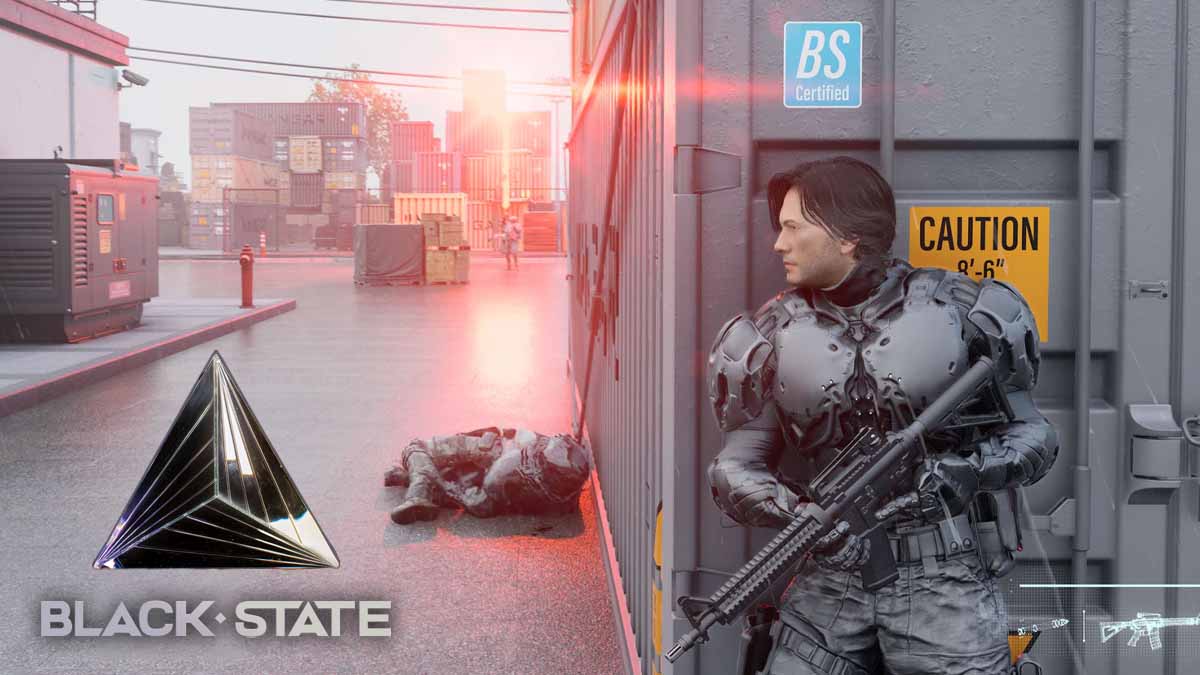
An upcoming game that promises to push the RTX 50-series to its limits, Black State is an open-world RPG with deep mechanics and breathtaking visuals. On the RTX 5080, the game runs efficiently at 1440p with smooth frame rates and AI-enhanced rendering through DLSS 4. The RTX 5090, however, unlocks the full potential of real-time ray tracing and ultra settings, ensuring a highly immersive, cinematic experience at 4K resolution.
Monster Hunter Wilds
Monster Hunter Wilds is the next installment in Capcom’s beloved series, bringing vast open landscapes and dynamic monster encounters. The RTX 5080 provides excellent performance at 1440p with high settings, maintaining smooth frame rates during intense battles. Meanwhile, the RTX 5090 allows players to experience the game at 4K with ultra settings, rendering intricate details in the environment and enhanced AI-driven physics for a next-generation hunting experience.
These titles not only showcase the raw power of NVIDIA’s RTX 5080 and 5090 GPUs but also provide immersive experiences that set new standards in gaming. Whether you’re exploring futuristic cities, surviving horror-filled landscapes, or soaring through realistic skies, these games will ensure your hardware is utilized to its fullest potential.

Upgrade to an RTX 5080 or RTX 5090 Gaming PC
For the best experience with these cutting-edge games, consider upgrading to a high-performance gaming PC equipped with the latest RTX 50-series GPUs:
- 50 Series Gaming PCs
- NVIDIA RTX 5080 Gaming PCs
- NVIDIA RTX 5090 Gaming PCs
- Hyte Y60 RTX 5080 Gaming PC
- Fractal North XL RTX 5090 Gaming PC
- Corsair 3500X RTX 5090 Gaming PC
- Meshify Intel RTX 5090 Gaming PC
Explore our range of RTX 50-series gaming PCs and elevate your gaming experience today!
Reviews of the latest Graphics Cards:
Rock Paper Shotgun’s Review
Tech Power Up’s Review
Gamers Nexus Review
How to Eliminate Ground Loop Noise in Audio Production PCs
If you’re experiencing persistent humming or buzzing in your audio production setup, particularly when using high-performance audio production PCs, you’re likely dealing with ground loop noise. This common issue arises when multiple devices in your system create unintended electrical interference. Fortunately, there are solutions that can help ensure your studio runs without audio disruptions. In this guide, we’ll explore the causes of ground looping and effective ways to resolve it for professional audio production.
What Causes Ground Loop Noise in Audio Production PCs?
Ground loop noise occurs when your audio production PC and peripherals, such as audio interfaces, monitors, and mixers, are plugged into different power outlets with differing ground potentials. This discrepancy induces unwanted electrical current in your audio cables, causing a low-frequency hum or buzz that interferes with your production quality.
Some common causes include:
- Audio interfaces and external devices: Multiple grounding points between your audio PC and an external sound card can introduce noise.
- Powered studio monitors: If your speakers and PC are connected to different power sources, a ground loop may form.
- Coaxial and USB connections: Cable TV boxes, USB peripherals, and power supplies with poor shielding can introduce interference.
- Long, unbalanced cables: Using unbalanced cables over long distances can pick up unwanted noise.
How to Fix Ground Loop Noise in Your Audio Production Setup
As an audio professional, clean sound is critical. Here are the best solutions to eliminate ground loop noise in audio production PCs:
1. Use a Ground Loop Isolator
A ground loop isolator is an easy and effective solution. These devices sit between your audio interface and monitors, breaking the loop while maintaining sound quality. They are available for RCA, 3.5mm, or XLR connections and can significantly reduce hum in your setup.
2. Power Everything From the Same Source
Plug all your studio gear—including your audio production PC, audio interface, and powered monitors—into the same power outlet using a high-quality power conditioner or surge protector. This minimizes ground potential differences and prevents loops from forming.
3. Use Balanced Cables
Balanced cables (XLR or TRS) are designed to reject interference, making them a superior choice for professional audio setups. If your audio interface and monitors support balanced connections, upgrading from RCA or TS cables can dramatically reduce noise.
4. Disconnect and Identify the Problem Source
Try unplugging individual devices to identify the culprit. For example, if disconnecting your laptop’s power adapter stops the noise, a USB ground loop isolator can help resolve the issue.
5. Invest in a Hum Eliminator
Devices like the Ebtech Hum X can help remove unwanted noise by safely lifting the ground connection, preserving audio fidelity while protecting your equipment.
6. Ensure Proper Electrical Grounding
Poor electrical grounding can contribute to audio interference. If ground loops persist, consult an electrician to inspect your studio’s wiring and ensure it meets safety standards.
7. Use Optical (TOSLINK) Audio Connections
For digital audio connections, consider switching to optical (TOSLINK) cables, which transmit signals using light rather than electrical currents, eliminating the possibility of ground loops.
Final Thoughts
Ground loop noise is an annoying but solvable issue. By identifying the source and applying one (or a combination) of these fixes, you can achieve crystal-clear audio free from unwanted hums and buzzes.
If you’re interested in a visual demonstration, check out this YouTube video, which breaks down the issue and solutions effectively.
For professional audio production, eliminating ground loop noise is crucial for achieving clean and high-fidelity sound. By following these solutions—especially using balanced cables, ground loop isolators, and a centralized power source—you can optimize your audio production PC setup and focus on creating flawless music and sound design.
For a seamless audio production experience, having the right music production PC is essential. At Inside Tech, we specialize in high-performance audio production PCs designed to handle professional DAWs, plugins, and multi-track recording without unwanted interference. Explore our range of optimized music production PCs today and take your studio setup to the next level: Inside Tech Music Production PCs
Contact us for expert guidance on building the ultimate high-performance workstation for your studio!